Branded QR Codes: Add Your Logo, Colors, and Frames
Add your logo, brand colors, gradients, and a Scan me frame to your QR codes on uqr.ai without breaking scannability, plus a step-by-step workflow and when to use PNG vs SVG.
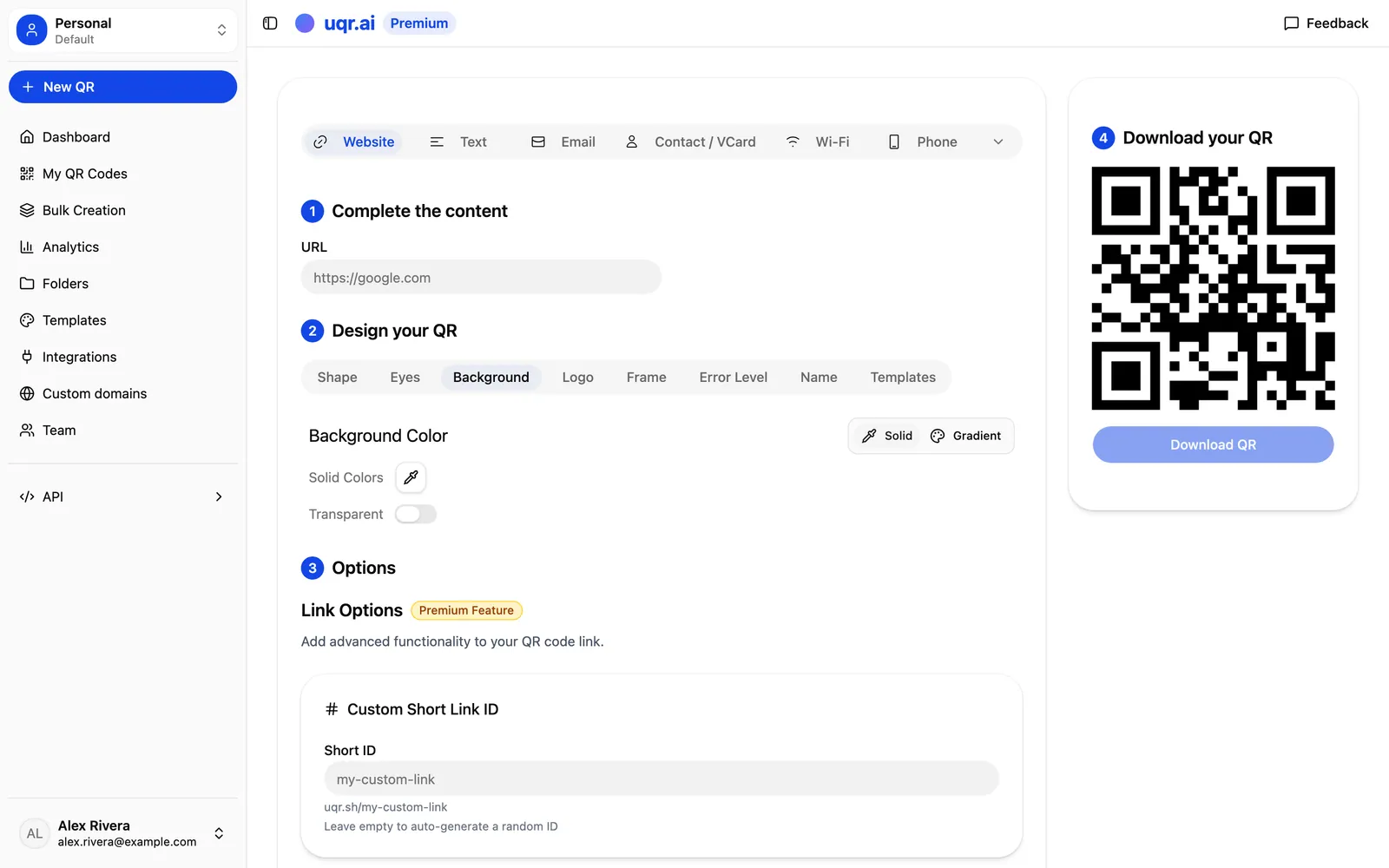
A QR code is one of the few places where your brand meets the physical world, yet most of them look like the same anonymous black square. A branded QR code fixes that, turning the code into part of your design instead of a blemish on it.
The catch is balancing style with function. A QR code still has to scan instantly, on the first try, from across a room. Here is how to brand your codes on uqr.ai without breaking them.
Put your logo at the center
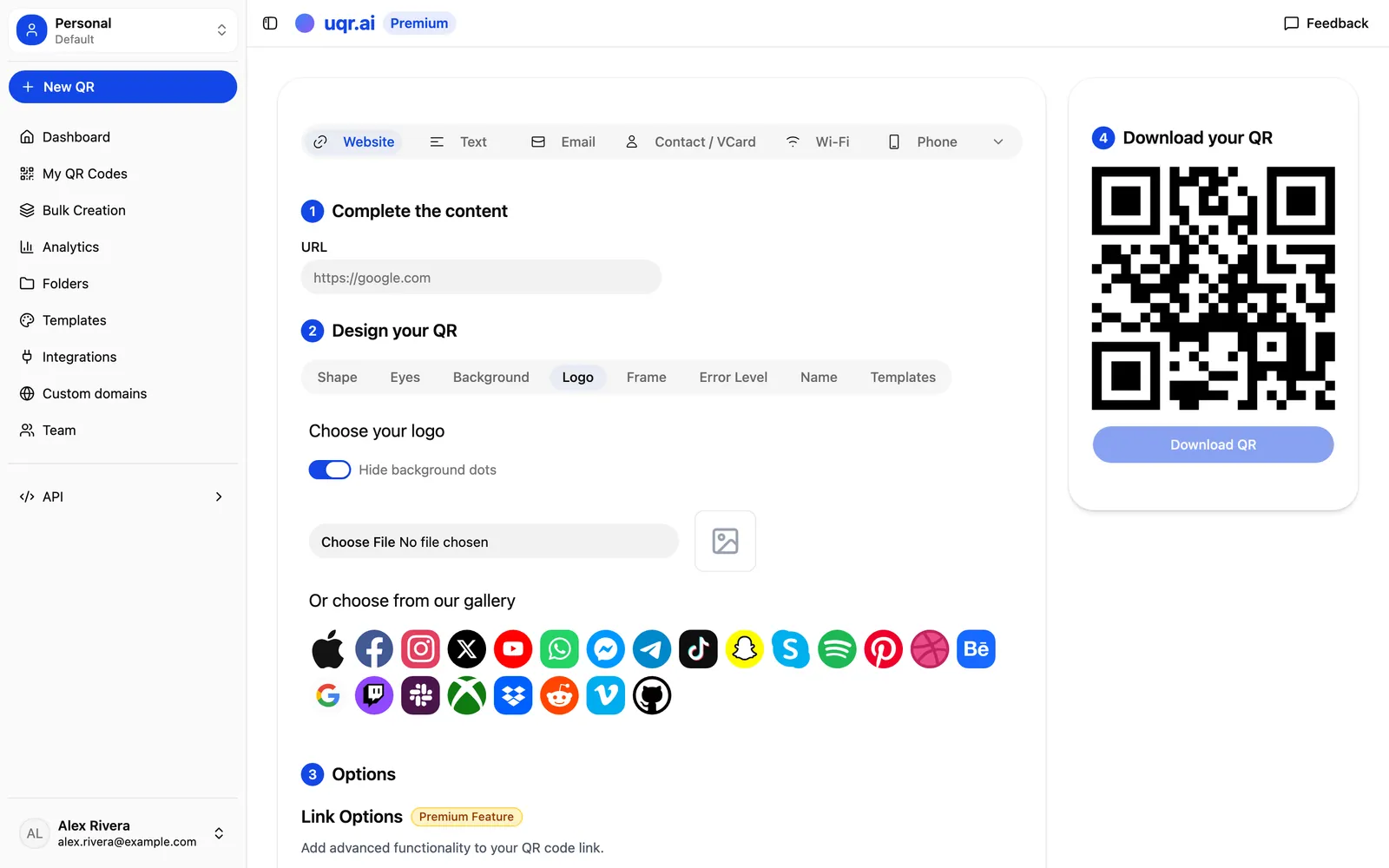
The fastest way to make a QR code recognizably yours is to drop your logo into the middle of it. uqr.ai lets you upload a center logo so your mark sits right in the heart of the pattern, and customers see your brand before they scan.
QR codes carry built-in error correction, which is what makes a center logo possible: the code can lose a portion of its area and still resolve correctly. But that tolerance has limits.
Logo rules that keep the code readable
- Keep the logo small. Cover the center only, not the corners. The three large squares in the corners are position markers, and scanners need them clean.
- Use a logo with clear edges. A simple mark on a solid or transparent background reads better than a busy, full-color illustration.
- Always test after uploading. Scan with a couple of phones before you commit the design to print.
Custom colors and gradients
Color is where a QR code stops being generic. On uqr.ai you can set custom colors and even apply gradients that carry your brand palette across the whole pattern. A deep navy code on a warm cream background feels nothing like the default black-on-white square, but it scans just as reliably when you respect one rule: contrast.
Scanners read QR codes as dark modules on a light background. The bigger the difference in lightness between the two, the easier the read.
- Go dark-on-light, not the reverse. A dark pattern on a light background is the safest, most universally readable combination.
- Avoid low-contrast pairings. Yellow on white, pastel on pastel, or two mid-tones next to each other can confuse a camera, especially in poor lighting.
- Be careful with gradients. Keep the lightest end of the dark pattern clearly darker than the background, so the gradient never fades into it.
Tip When in doubt about a color combination, squint at the design or view it in grayscale. If the pattern still reads as clearly darker than the background, a camera will handle it too.
Frames and a clear call to action
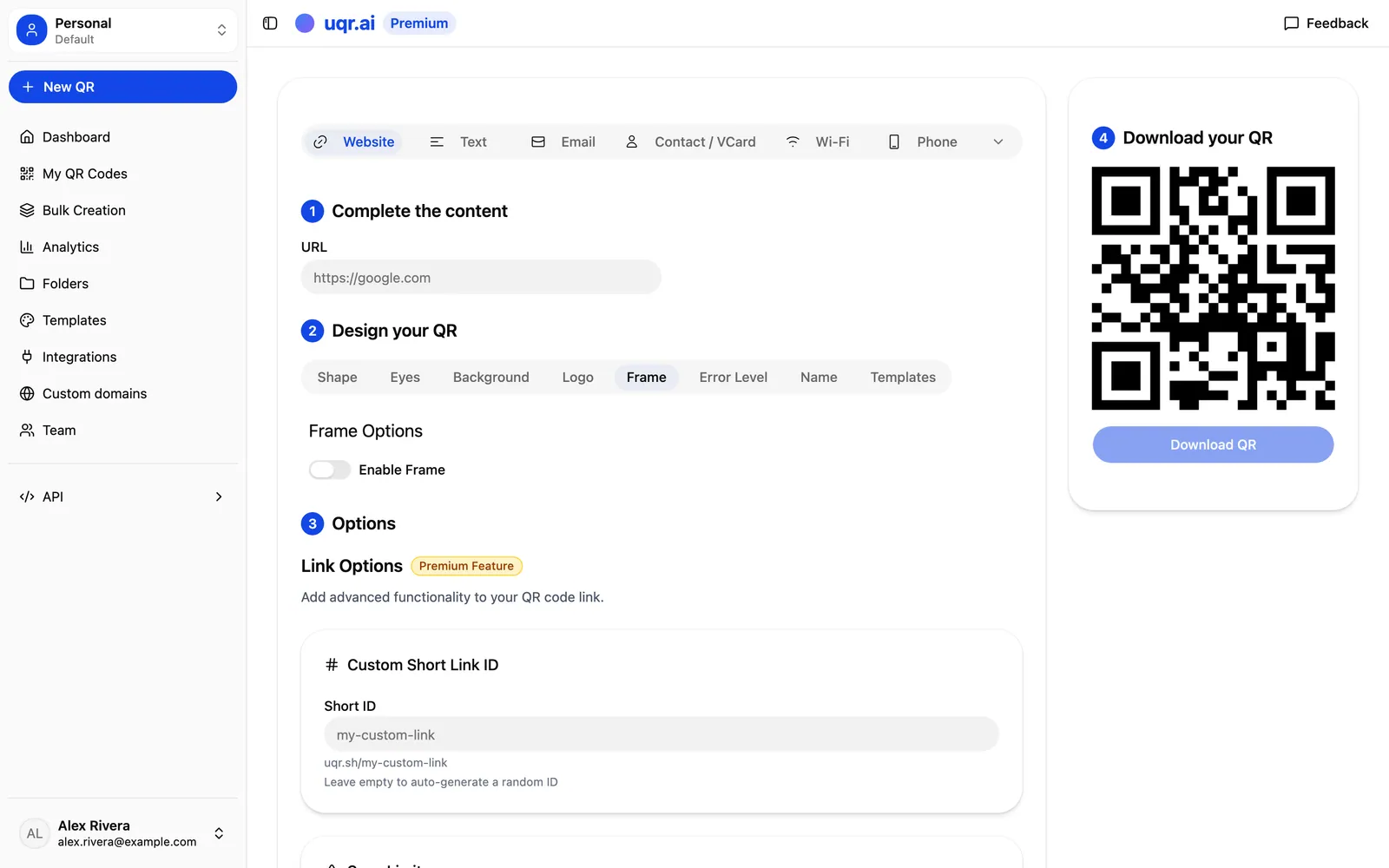
A QR code on its own gives people no reason to act. A frame does. uqr.ai offers frame options, styled borders that wrap the code and include custom call-to-action text like "Scan me," "Scan for the menu," or "Scan to save 10%." That short line of copy is often the difference between a passerby reaching for their phone and walking on.
Good call-to-action text is specific about the payoff. Instead of a bare code on a flyer, a framed code that says "Scan to RSVP" tells the reader what happens next. Match the message to the destination: a restaurant frame might say "View our menu," an event poster "Get your ticket," a product label "See how it works."
Templates and AI-generated artistic codes
If you would rather not build a look from scratch, design templates give you pre-made starting points you can adjust to your brand, a quick way to get a polished, on-brand code without fiddling with every color and corner yourself.
For something genuinely eye-catching, uqr.ai also creates AI-generated artistic QR codes, designs where the pattern is woven into an illustration or scene rather than sitting in a plain grid. These are perfect for a campaign hero image or a piece you want people to stop and look at. The free plan includes a limited number of AI-generated codes; Premium unlocks unlimited AI generations so you can iterate until the art is right.
Important The more artistic a code gets, the closer it pushes against the limits of scannability. Always test artistic codes thoroughly across different phones and lighting before they go live, and keep a cleaner fallback version on hand for high-stakes placements.
Scannability best practices
Branding and reliability are not at odds, but you have to design with both in mind. These are the core rules that keep a styled code working.
- Protect the quiet zone. The quiet zone is the empty margin around the code. Scanners use it to find the pattern's edges, so never crowd a code with text or graphics right up against it.
- Maintain strong contrast between the pattern and its background, as covered above.
- Don't over-stylize. Rounded modules, custom corners, and a center logo are fine in moderation. Push all of them to the extreme at once and you risk a code that looks beautiful and scans poorly.
- Mind the print size. A code on a billboard can be elaborate; a business card has far less room for error, so keep small-format codes simpler.
- Test before you print. Scan the final design with multiple devices, from realistic distances, in the lighting where it will live.
Build a branded code, step by step
Here is a simple workflow that produces a code you can ship with confidence.
- Create your QR code and point it at your destination: a URL, a PDF menu, a vCard, or any of the 20+ types uqr.ai supports.
- Upload your center logo, keeping it small enough to leave the corner markers clear.
- Set your colors or a gradient, checking that the dark pattern stays clearly darker than the background.
- Add a frame with a specific call to action that tells people what they'll get.
- Scan the preview with two or three phones to confirm it reads instantly.
- Download as PNG for screens or SVG for print.
PNG or SVG: which to download
The format you export decides how well the code holds up at its final size. Here is the quick guide.
| Format | Best for | Why |
|---|---|---|
| PNG | Websites, email, slides | Pixel-based image that drops straight into digital layouts |
| SVG | Posters, packaging, signage | Vector-based, so it scales to any size with zero quality loss |
Because uqr.ai codes are dynamic, you can change the destination later without touching the printed design, so a branded code you laminate today can point somewhere new next month.
A real example: a restaurant menu code
Picture a restaurant that wants table-tent codes for its digital menu. They create a dynamic QR code pointing to a PDF menu, drop their logo in the center, and color the pattern in their signature dark green on a cream background, which is strong contrast and on brand. They add a frame reading "Scan for today's menu," then export an SVG and send it to the printer for crisp table tents.
When the seasonal menu changes, they update the destination in uqr.ai. The printed code stays exactly the same on every table, but it now serves the new menu. Branded, beautiful, and still working long after it left the printer.
Key takeaways
- A center logo, custom colors, and a framed call to action turn a generic square into a recognizable part of your brand.
- Contrast is the rule that protects scannability: keep the dark pattern clearly darker than its background, and never crowd the quiet zone.
- Templates and AI-generated artistic codes give you a polished look fast, with the free plan offering a limited number of AI codes and Premium unlocking unlimited.
- Download PNG for screens and SVG for print, and always test the final design across multiple phones before committing it.
- Dynamic codes let you change the destination after printing, so a branded design keeps working long after it ships.
Ready to make codes that look like yours? Create a QR code for free, explore all features, or start a free 7-day trial to unlock unlimited AI-generated artistic codes and full advanced customization.