Google Review QR Code Stands: Print Your Own Counter Stands and Cards
You don't need to buy a review stand from anyone. Get your Google review link, turn it into a QR code, and print your own counter stands, table tents, and handout cards at any local print shop.
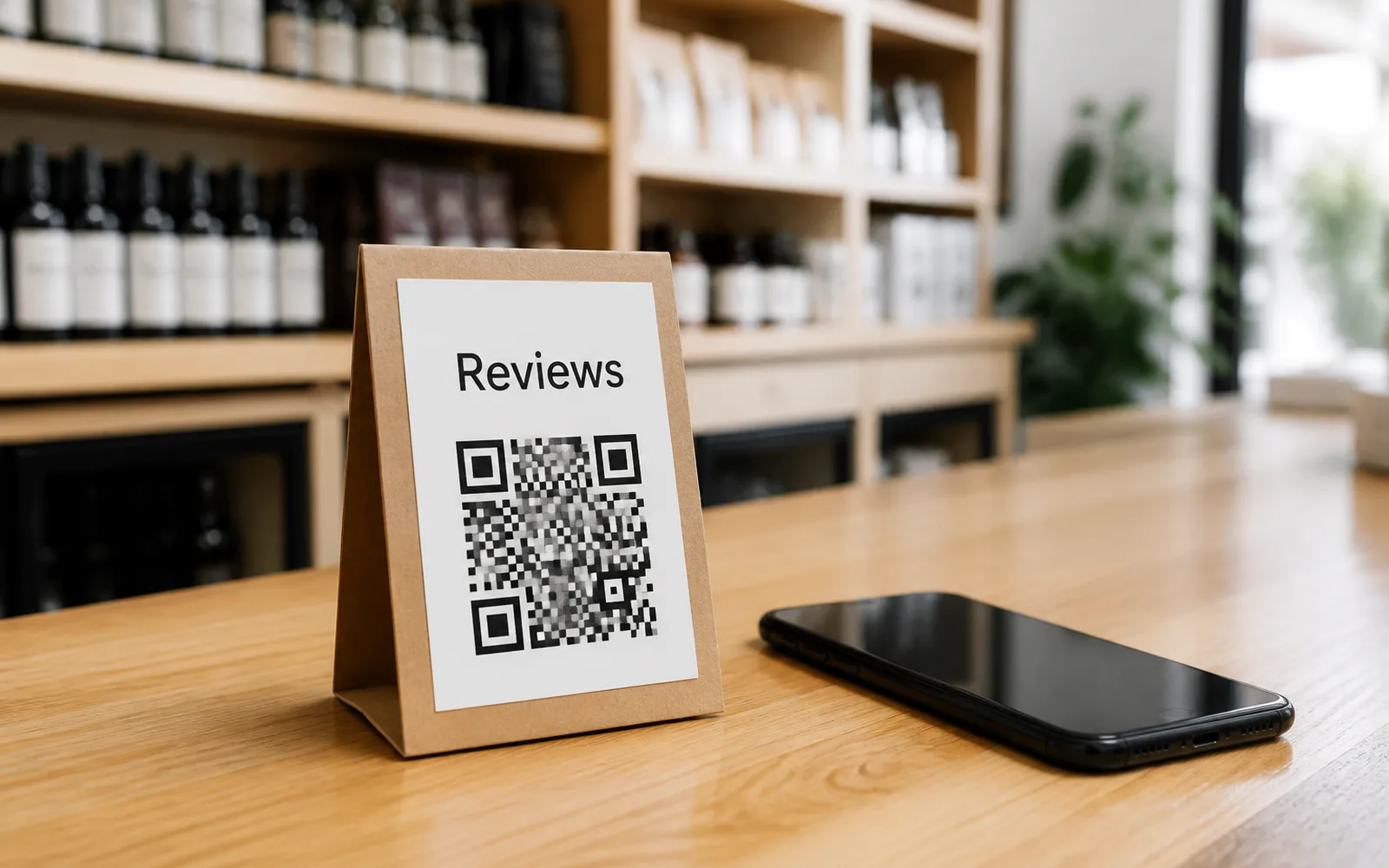
Walk into any busy café and you'll probably spot one: a small stand next to the register with a QR code and a line like "Enjoyed your visit? Leave us a review." They work because they catch customers at their happiest moment — and because scanning beats hoping someone types your business name into Google later.
Here's what the companies selling "Google review stands" don't advertise: the stand is just a printed QR code in a holder. You can make one yourself in an afternoon.
The short version: copy your review link from Google Business Profile ("Ask for reviews"), paste it into a Google review QR code generator, download the code as SVG or PDF, and print it at least 2 × 2 cm on a counter stand, table tent, or business-card-sized handout. Any local print shop — or your office printer — can handle it. To be clear: UQR doesn't sell physical stands; this is a how-to for printing your own.
Step 1: Get your Google review link
Google gives every business a direct link that opens the review form — five stars and a text box, no searching required.
- Sign in to your Google Business Profile (search your business name on Google as the owner, or use the profile manager).
- Find the "Ask for reviews" button.
- Copy the short share link Google shows you.
That link is the whole trick: anyone who opens it lands straight on the "write a review" dialog, not a search results page. Open it once in an incognito window to confirm before building anything around it.
Step 2: Turn the link into a QR code
Paste your review link into the Google review QR code generator and shape it to match your counter:
- Brand colors, keeping the code itself dark on a light background.
- Your logo in the center, signaling at a glance that the code is yours and safe to scan.
- A frame with call-to-action text built into the image, so the ask travels with the code.
Design and preview work without an account; you sign up (free) at the moment you download. Your code is dynamic — the printed pattern points to a short link whose destination stays editable — and a single review code fits easily in the free plan's five dynamic codes.
When you download, pick SVG or PDF rather than PNG. Both are vector formats, which matters as soon as print enters the picture — more on that below.
Step 3: Pick a physical format
Three formats cover almost every business, and none needs special equipment — a print shop can produce all three, and the first two work fine from an office printer plus an off-the-shelf holder.
The acrylic counter stand (10 × 15 cm)
The classic. Buy an empty 10 × 15 cm (4 × 6 in) acrylic sign holder — office supply stores sell them for a few dollars — and print an insert with your code, logo, and one line of copy. It stands upright by the register, survives spills, and the insert swaps out anytime.
The folded table tent
Cardstock folded into a triangle, printed on both faces so it reads from either side. It's the natural pick for restaurants and cafés: the code sits in front of customers during the wait, not just at checkout.
Review cards and stickers
Business-card-sized handouts with the code on one side and a thank-you line on the other. Hand one over with the receipt, drop one in every delivery bag, or print the design as stickers for packaging. Cards travel home with the customer — the only format that can catch someone hours after the visit.
| Format | Best for | Typical spot |
|---|---|---|
| Acrylic stand | Retail, salons, clinics | Counter, next to the register |
| Table tent | Restaurants, cafés, bars | On the table |
| Card / sticker | Delivery, trades, e-commerce | Receipt, bag, package |
Print specs that keep the code scannable
A review stand fails silently — nobody tells you the code doesn't scan; they just don't. A few specs prevent that.
- Print from SVG or PDF. Vector files stay sharp at any size; a small PNG scaled up goes blurry, and blurry edges are the top reason printed codes misread.
- Minimum 2 × 2 cm for the code itself. That's the floor for a close-range scan; on a counter stand, 4–5 cm scans effortlessly from standing height.
- Keep the quiet zone. The white margin around the code is part of the spec, not wasted space — don't let backgrounds, borders, or text crowd it.
- Contrast matters. Dark code on a light background; skip light-on-dark and low-contrast palettes.
- Test-scan before bulk printing. Print one copy at final size and scan it with a couple of different phones at real customer distance — only then order 500 cards.
Tip Running several locations? Don't reuse one code everywhere — you'll never know which branch the reviews came from. Generate one per location; the CSV workflow in bulk QR code generation (Business) creates the whole batch in one pass. See bulk QR codes.
Where to put them
Placement is timing: the ask should land right after a good experience.
- The counter. Next to the card reader is prime territory — customers are already standing there, phone out, to pay.
- The exit. A small sign at eye level by the door catches people on the way out, while the impression is fresh.
- The receipt. Staple or hand a review card to every receipt — it costs nothing and reaches customers you never spoke to.
- The delivery bag. For takeout and e-commerce, a card or sticker inside the package is your only face-to-face moment — use it.
What to print above the code
The copy matters as much as the code. One short, friendly line beats a paragraph:
- "Enjoyed your visit? Leave us a review."
- "Happy with the service? Tell Google — it takes 30 seconds."
- "Scan to share your experience."
Keep it an invitation, not a transaction. Google's policies prohibit offering discounts or gifts in exchange for reviews, so leave incentives off the stand — a genuine ask outperforms them anyway.
Why the code behind the stand matters
A review stand sits on a counter for years, so the provider question matters (do QR codes expire?). A static QR code encodes the link in the pattern itself and can never expire — but it also can never change. A dynamic code depends on the provider keeping the redirect alive, and with some generators, codes created on a free trial simply deactivate after a few days, turning every printed stand into a dead end.
On UQR, QR codes never expire — free plan included. The only expiry is one you deliberately set yourself (Pro), an optional control covered in password-protected and expiring QR codes. And because the code is dynamic, if Google ever changes your review link, you update the destination in the dashboard and every stand already printed follows instantly — no reprint.
The dynamic layer also answers the obvious question: is the stand working? Your dashboard shows scans over time, so you can compare the counter stand against the delivery-bag cards and see which placement earns its spot — the free plan keeps 30 days of history. The details are in QR code analytics.
Key takeaways
- Get the link from Google Business Profile's "Ask for reviews" button — it opens the review form directly.
- A "review stand" is a printed QR code in a holder — an acrylic 10 × 15 cm stand, a folded table tent, or business-card handouts from any print shop.
- Download SVG or PDF, keep the code at least 2 × 2 cm with its quiet zone intact, and test-scan before bulk printing.
- Place codes where the experience just ended: counter, exit, receipt, delivery bag.
- One friendly line above the code — and no incentives, per Google's review policies.
- Print a code that outlives the stand: on UQR, codes never expire, stay editable, and report their scans.
Ready to build yours? Create your Google review QR code for free, print a test copy today, and let the counter do the asking.