Tracking Pixels for QR Codes: Retarget and Measure Every Scan with GA4, Google Ads & Meta
Attach your own GA4, Google Ads, Google Tag Manager, Meta and social pixels to your dynamic QR codes. They fire on every scan — so a printed poster or product label can build retargeting audiences and track conversions inside your own ad and analytics accounts.
A QR code is the rare piece of marketing that lives in the physical world but lands in the digital one. Someone sees your poster, your packaging, your business card — and a second later they are on your site. That hand-off from print to screen is the whole point. And yet, for most QR codes, the moment of the scan simply vanishes. The visitor arrives, your ad platforms never hear about it, and a real person who just engaged with your brand offline becomes a stranger again online.
Tracking pixels close that loop. Attach your own marketing tags to a dynamic QR code and they fire the instant it is scanned — feeding that scan straight into the same Google Analytics, Google Ads, and Meta accounts you already use for the rest of your marketing. The flyer on a café table becomes a retargeting source. The code on a trade-show banner becomes a measurable conversion path. The scan stops disappearing and starts showing up where your campaigns can actually use it.
What tracking pixels do on a QR code
A tracking pixel is just a small marketing tag — the same GA4, Google Ads, or Meta Pixel snippet you would put on a website — except here it runs when someone scans your code instead of when they load a page. When a visitor scans a dynamic UQR code that has pixels attached, their tap passes through a brief, automatic hand-off on the way to the destination. During that split second your tags fire, and then the visitor continues to wherever the code points.
The result is that an offline touchpoint behaves like an online one:
- Your GA4 property records the scan as a page view, so foot-traffic shows up next to your website sessions.
- Meta sees a real person and can add them to a Custom Audience you retarget later.
- Google Ads can attribute a conversion to the campaign whose code got scanned.
You are not handing your data to us and hoping for a report. The scan lands in your accounts, under your pixel IDs, ready for your audiences and dashboards.
Note Tracking pixels work on dynamic UQR short-link codes — the same codes you can edit anytime without reprinting. A static QR encodes its destination directly and never routes through us, so there is no moment in which a pixel could fire. Dynamic codes are what make retargeting from print possible.
The pixels you can add
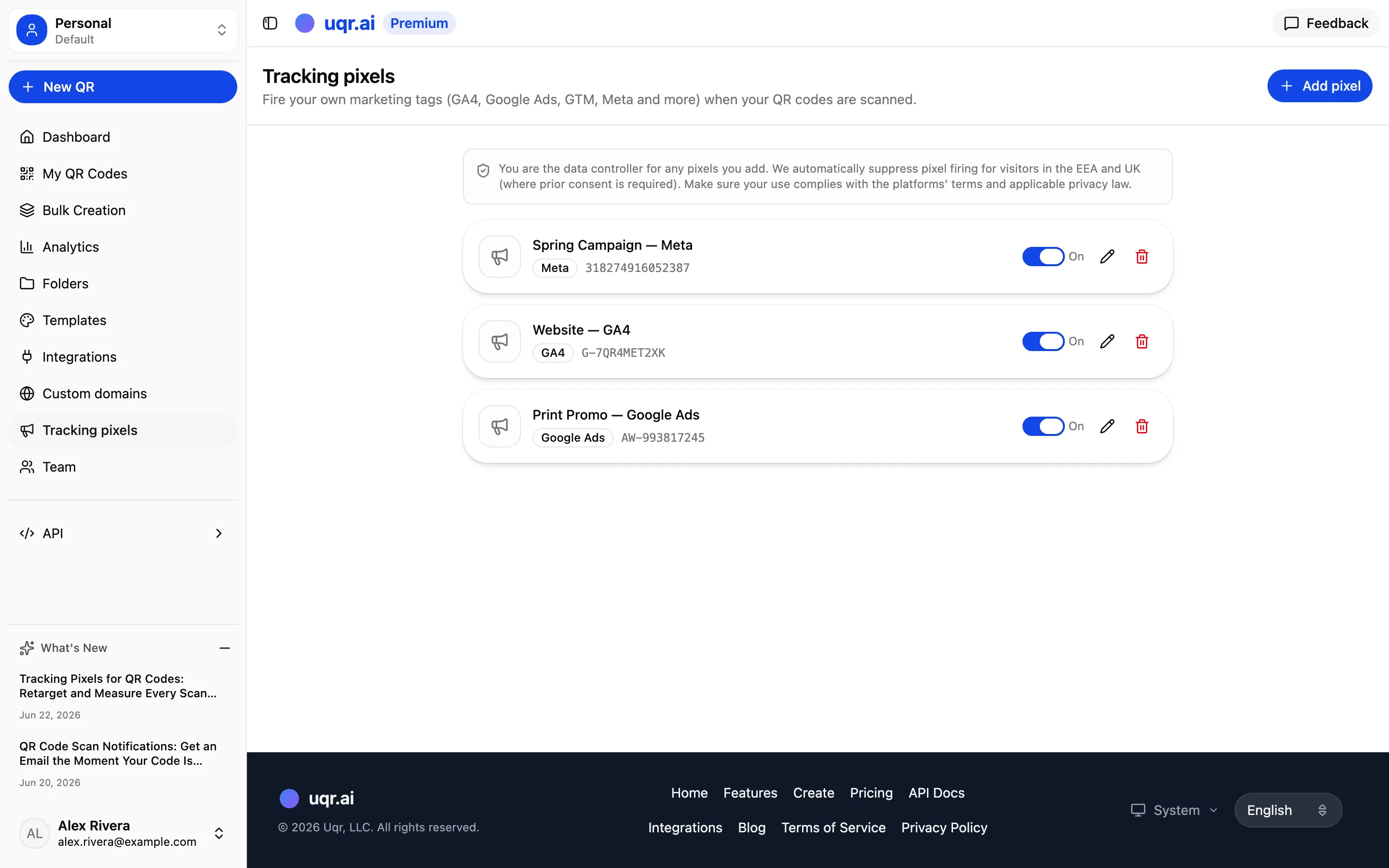
UQR supports the marketing tags that matter most, and you can attach as many as you like to a single code:
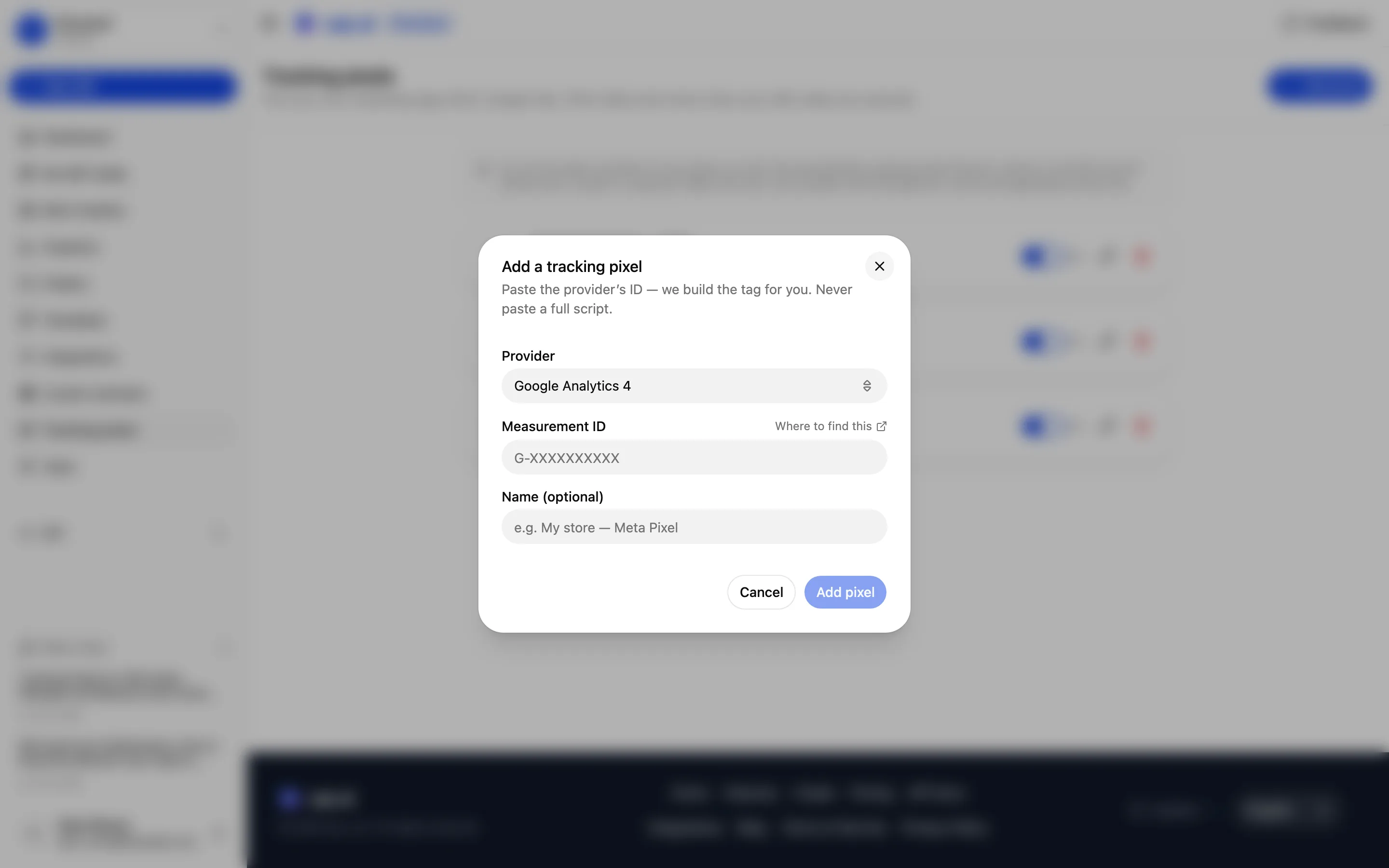
- Google Analytics 4 — your GA4 Measurement ID (
G-XXXXXXXX). - Google Ads — your Conversion ID (
AW-XXXXXXXX), with an optional conversion label. - Google Tag Manager — your Container ID (
GTM-XXXXXXX). - Meta Pixel — your numeric Pixel ID.
- TikTok, LinkedIn, Pinterest, and X (Twitter) — for retargeting and conversion tracking on the social platforms where you advertise.
You add a pixel by pasting its ID — never a full script. UQR builds the correct tag for you from that ID, which keeps the setup foolproof and your codes safe (more on that below).
Tip If a platform you use isn't in the list, reach for Google Tag Manager. Drop your GTM container ID in once and you can manage every other tag — extra pixels, custom events, third-party tools — from inside GTM, without touching your QR codes again. It is the universal escape hatch for power users.
Define once, attach to any code
Tracking pixels live in a reusable library, the same way custom domains do. You add a pixel one time, give it a friendly name like "Spring Campaign — Meta," and it is then available to attach to any code you create.
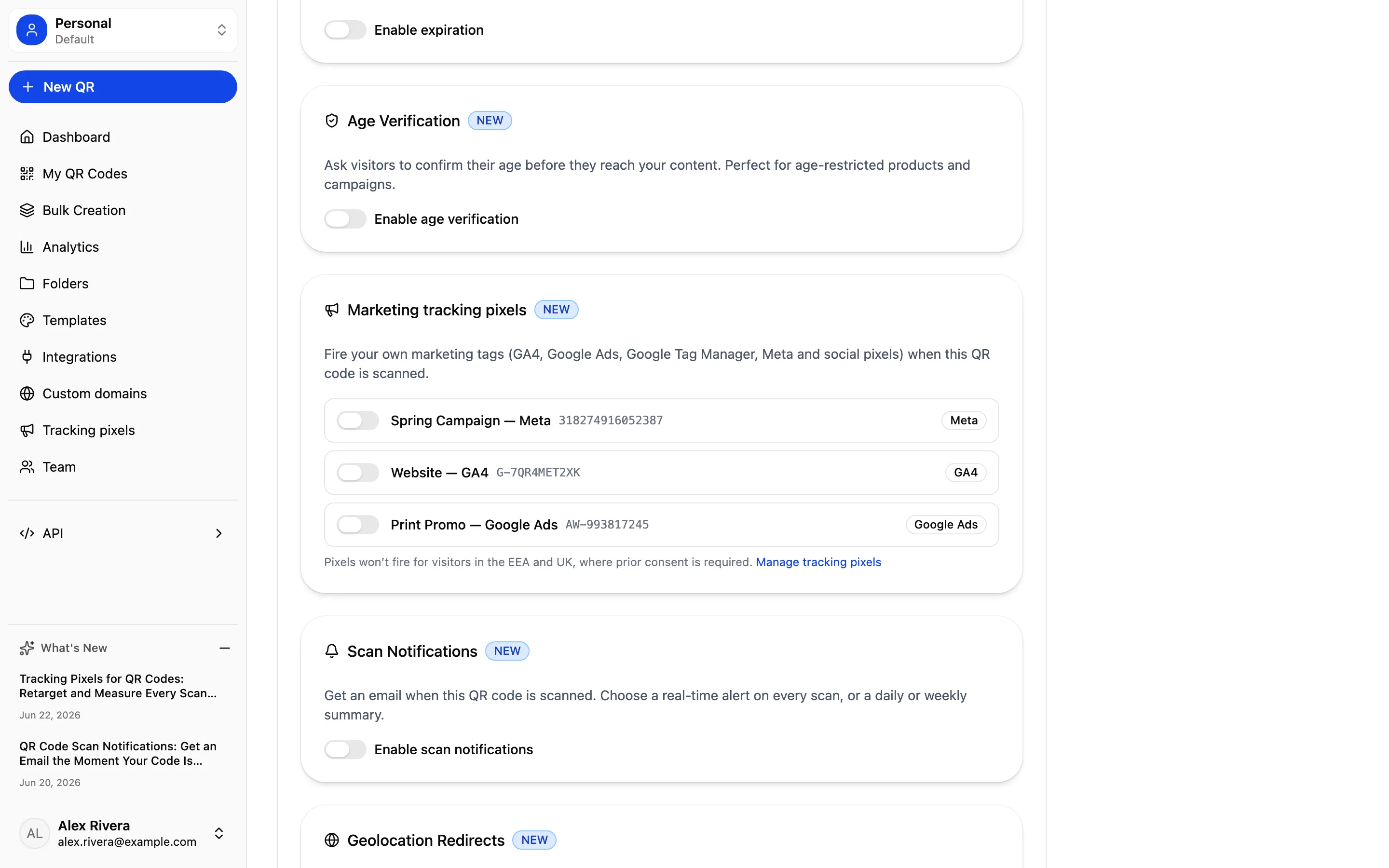
Attaching happens right where you set up everything else about a code: the Link Options panel, alongside password protection, expiration, geolocation redirects, and scan notifications. Flip on the pixels you want for that code and save. Different campaigns can carry different pixels, and updating a code's pixels never touches the others.
What you can actually do with it
The feature is simple; the plays it unlocks are not.
- Retarget people who met you offline. Put a Meta Pixel on the code on your booth banner, your packaging insert, or your magazine ad. Everyone who scans becomes eligible for a retargeting audience — so the prospect who picked up your flyer and walked away can see your ad in their feed that evening.
- Prove your print campaigns convert. Attach a Google Ads conversion tag to a campaign code and you can finally tie a printed touchpoint to a measurable outcome, the same way you would a paid click.
- See offline scans inside GA4. With your GA4 ID on a code, physical-world scans flow into the same property as your website traffic — one place to understand the whole journey instead of two disconnected halves.
- Run multi-channel retargeting from one sticker. Stack a Meta, TikTok, and LinkedIn pixel on the same code and a single scan can seed audiences across every platform you advertise on.
Privacy and safety, built in
Firing third-party marketing tags responsibly takes more than a text box, so two things are handled for you.
First, region-aware consent. Pixels are automatically not fired for visitors in the EEA and the UK, where prior consent is required for this kind of tracking. Those visitors are sent straight to your destination with no tags fired, while scans elsewhere fire normally. You remain the data controller for the pixels you attach, and you should make sure your use complies with each platform's terms and the privacy laws that apply to you — but the default behavior keeps the most sensitive regions on the safe side automatically.
Second, IDs only, never raw scripts. Because you paste an ID and UQR builds the tag from a fixed, trusted template, there is no place for a stray or malicious script to sneak onto your codes. It is safer for you and for everyone who scans.
Note Bot and crawler traffic is excluded from pixel firing, just as it is from your scan analytics. A pixel firing always means a real person scanned your code — not an automated link-preview hitting the URL — so the audiences and conversions you build stay clean.
Free versus Pro
Tracking pixels are part of Pro, sitting alongside the rest of the advanced toolkit. Every account still gets unlimited scans and scan analytics, whatever the plan.
| Capability | Free | Pro |
|---|---|---|
| Scan analytics | Basic | Advanced |
| Your own tracking pixels (GA4, Google Ads, GTM, Meta, social) | Not included | Included |
| Pixels per code | Not included | Unlimited |
| Reusable pixel library | Not included | Included |
| EEA/UK consent suppression and bot exclusion | Included | Included |
| Advanced controls | Not included | Password protection, link expiration, scan limits, geolocation redirects, scan notifications |
Pixels round out the controls you already rely on: you can geolocate visitors by country, protect a code with a password, expire it on a date, get an email the moment it is scanned — and now feed every one of those scans into your own ad and analytics accounts.
Key takeaways
- Tracking pixels let you attach your own GA4, Google Ads, Google Tag Manager, Meta, TikTok, LinkedIn, Pinterest, and X tags to a dynamic QR code; they fire on every scan, into your own accounts.
- Add a pixel by pasting its ID into a reusable library, then attach any mix of pixels to any code from the Link Options panel — a different set per campaign.
- The plays it unlocks: build retargeting audiences from offline scans, prove print-campaign conversions, and see physical-world scans inside GA4.
- GTM acts as a universal escape hatch — one container ID lets you manage every other tag from inside Google Tag Manager.
- Privacy is built in: pixels are automatically suppressed for EEA and UK visitors, bots are excluded, and you only ever paste an ID (never a raw script), so your codes stay safe.
Ready to turn your QR codes into a retargeting and conversion channel? Create a QR code for free in minutes, explore all features, or upgrade to Pro to unlock tracking pixels, advanced analytics, and the full set of advanced controls.