QR Code Events: See Every Scan, Click and Download as It Happens
A scan tells you someone arrived. Events tells you what they did next: which link they tapped, which file they downloaded, whether they saved your contact. One live, filterable stream for every QR code and short link.
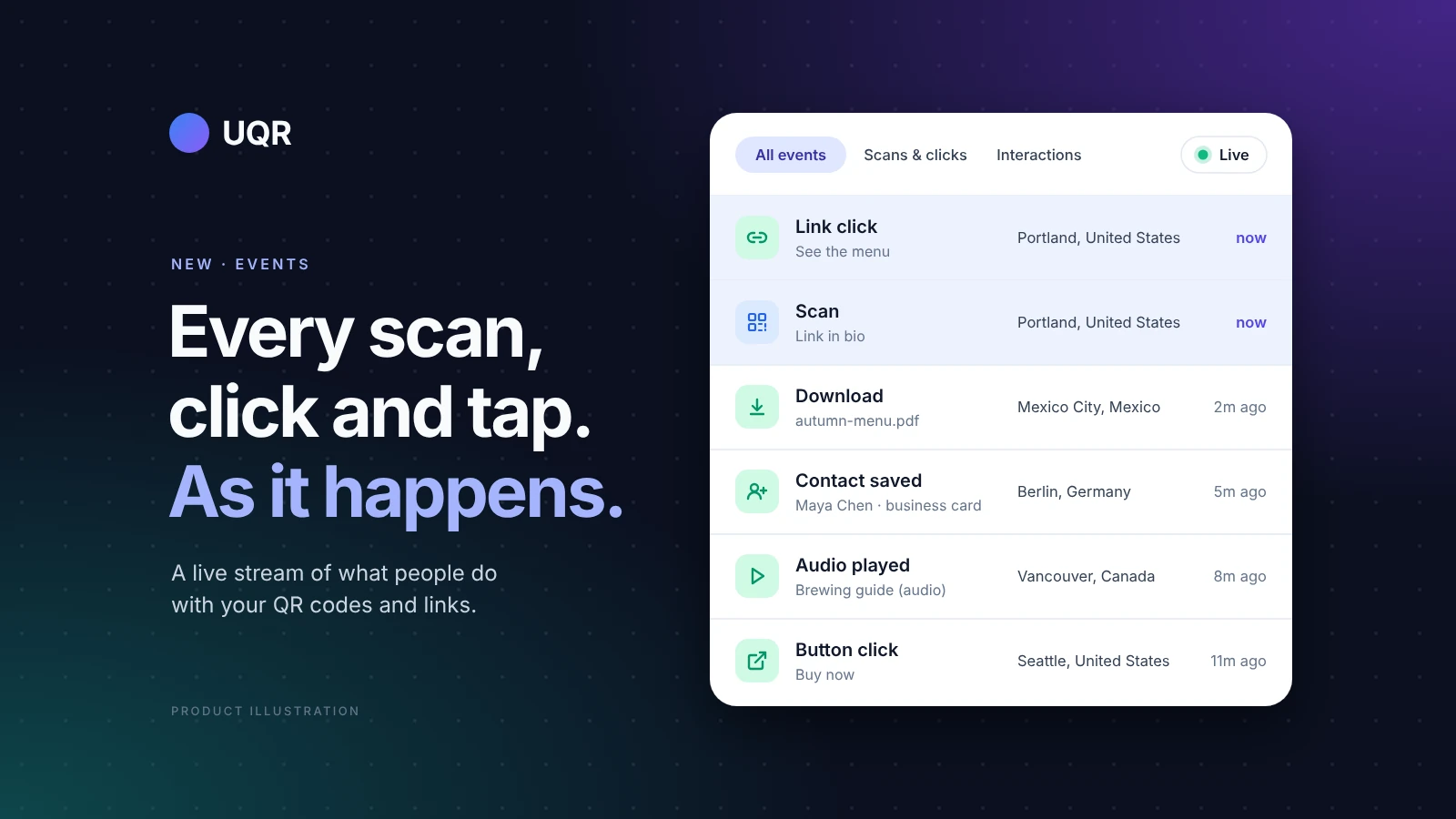
How to watch scans, clicks and page interactions as they happen
Watch the screen recording and follow the cursor. English subtitles are available.
Read the walkthrough steps
- Open Events. See every scan, click and page interaction on your codes, newest first. This recording uses fictional local sample data.
- Watch a visit arrive. A visitor opens your link page on their phone and taps a link. The new rows appear at the top without a reload.
- Show interactions. Open Interactions to see only what visitors did on your pages: the links, files and contacts they used.
- Filter to one question. Filter by event, code, country or device. The filter is part of the address, so you can share the view.
A scan count answers one question: did anyone arrive? It does not tell you what they did next. Did they tap the menu or the booking link? Did they open the PDF or close the tab? Did they save your contact, or only look at it?
Events is a new page in UQR that answers those questions. It lists every scan of your QR codes, every click on your short links, and what visitors do on the pages UQR hosts for you, in the order it happens and while it is happening.
Open Events to see your own stream. There is nothing to set up: the pages you already published report to it automatically.
One stream for every QR code event
Open Events in the sidebar, under Analytics. Each row is one thing one visitor did:
- What happened, such as a scan, a link click or a download, and what it was done to: the link's title, the file's name, the button's label.
- Which QR code or link it happened on, with its short address.
- Where and on what: city and country, device, and optionally browser and operating system.
- How the visitor arrived: by scanning the code or by opening the short link, and from which site when there is a referrer.
The newest event is at the top. Show older events at the bottom loads the ones before it.
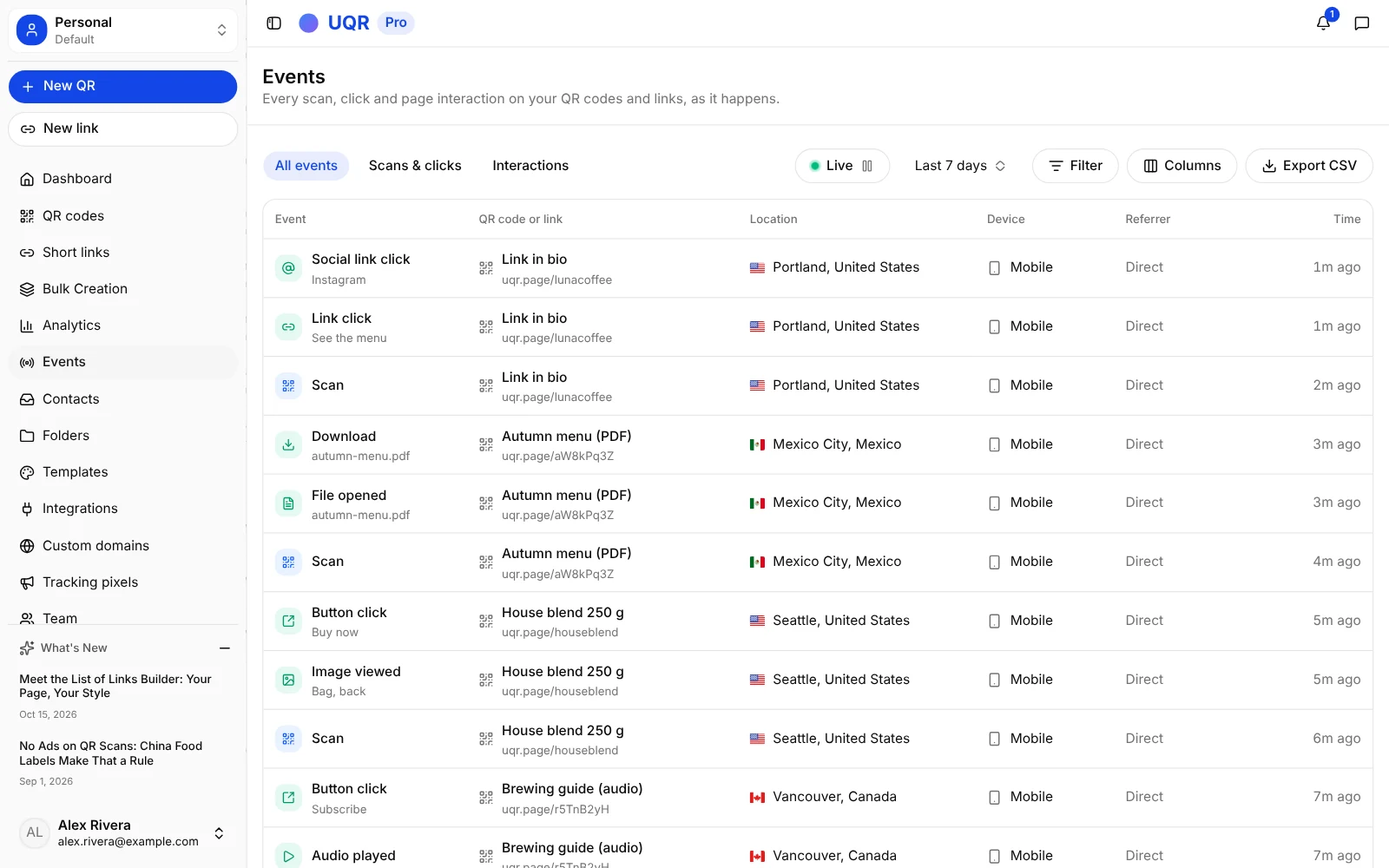
Scans say who arrived. Interactions say what they did
Events come in two families, and the tabs at the top switch between them.
| Tab | What it lists | Where it comes from |
|---|---|---|
| Scans & clicks | A visitor arriving: a Scan of a QR code or a Click on a short link | Every dynamic QR code and every short link |
| Interactions | What a visitor did after arriving: link clicks, downloads, plays, saved contacts, submitted forms | The pages UQR hosts for you |
| All events | Both, merged into one timeline |
Scans and clicks are the numbers you already know from QR code analytics. Interactions are new. They are the difference between "62 people opened the page" and "22 of them tapped See the menu".
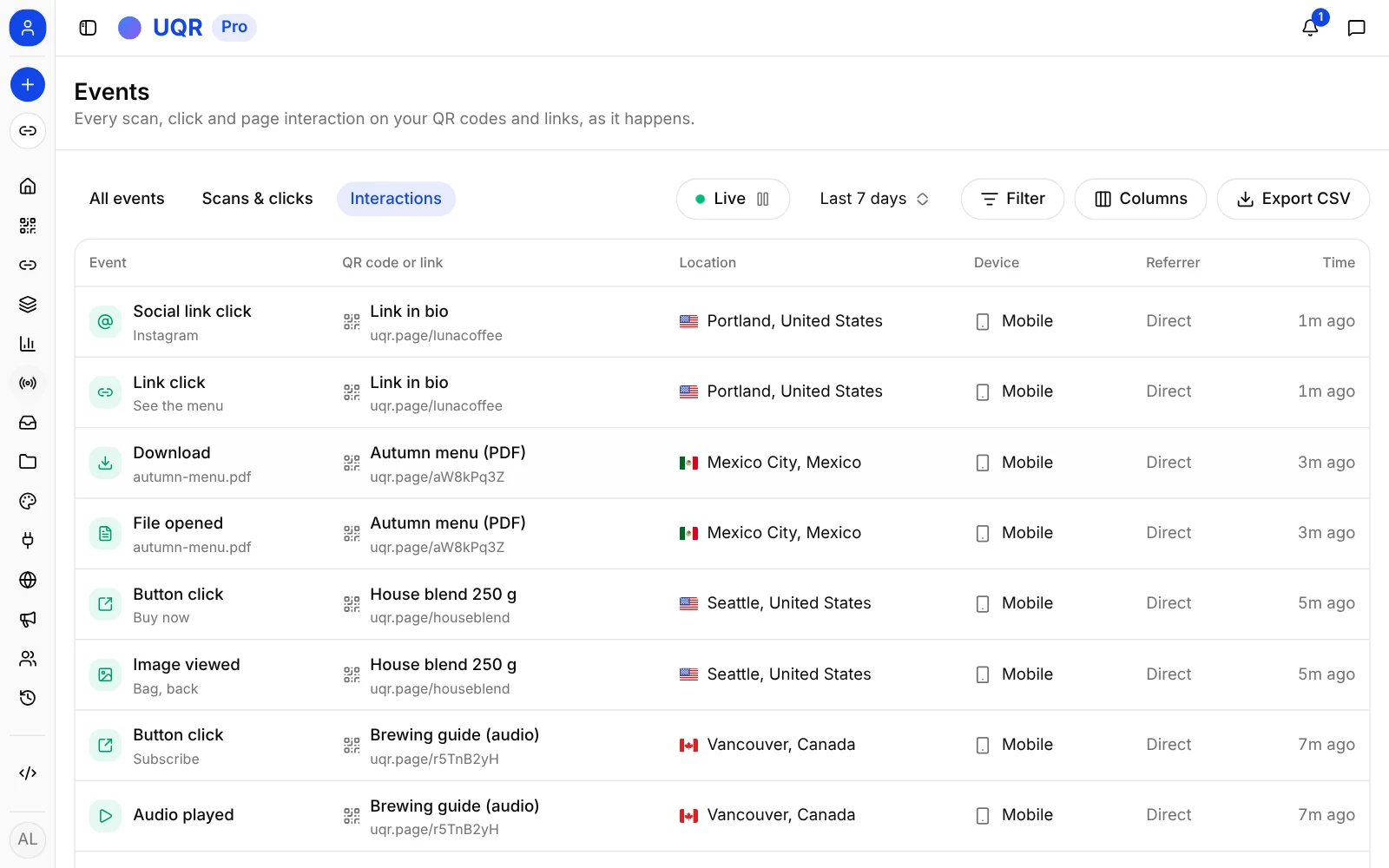
What each page reports
An interaction needs a page to happen on. These are the page types UQR hosts, and what each one reports.
| Page | What a visitor can do | Event |
|---|---|---|
| List of links | Tap a link, tap a social icon | Link click, Social link click |
| Send the contact form | Form submitted | |
| vCard | Save the contact | Contact saved |
| Tap the phone number or email address | Contact tap | |
| Add the card to a phone wallet, where the card offers it | Added to wallet | |
| Download the file, open it in a new tab | Download, File opened | |
| MP3 | Start playback, listen to the end | Audio played, Audio finished |
| Tap the link button | Button click | |
| Image gallery | Open a picture, download one | Image viewed, Download |
| Image | Open it full screen, download it, open it in a new tab | Image viewed, Download, File opened |
| File | Download it, open it | Download, File opened |
| Product | Look at a photo, tap the buy button | Image viewed, Button click |
| Text | Copy the text | Text copied |
| Send a message | Message sent | |
| Every hosted page | Use the share button | Share |
A QR code that sends people straight to a destination, such as your website, a social profile or an app store listing, has no page in between. It reports the scan, and what happens next happens on a site UQR cannot see. If you want to follow those visitors too, tracking pixels are the tool for that.
Here is the whole loop on two phones. A visitor scans a link-in-bio page, taps Book a tasting, then taps the Instagram icon. The owner's Events page shows all three.
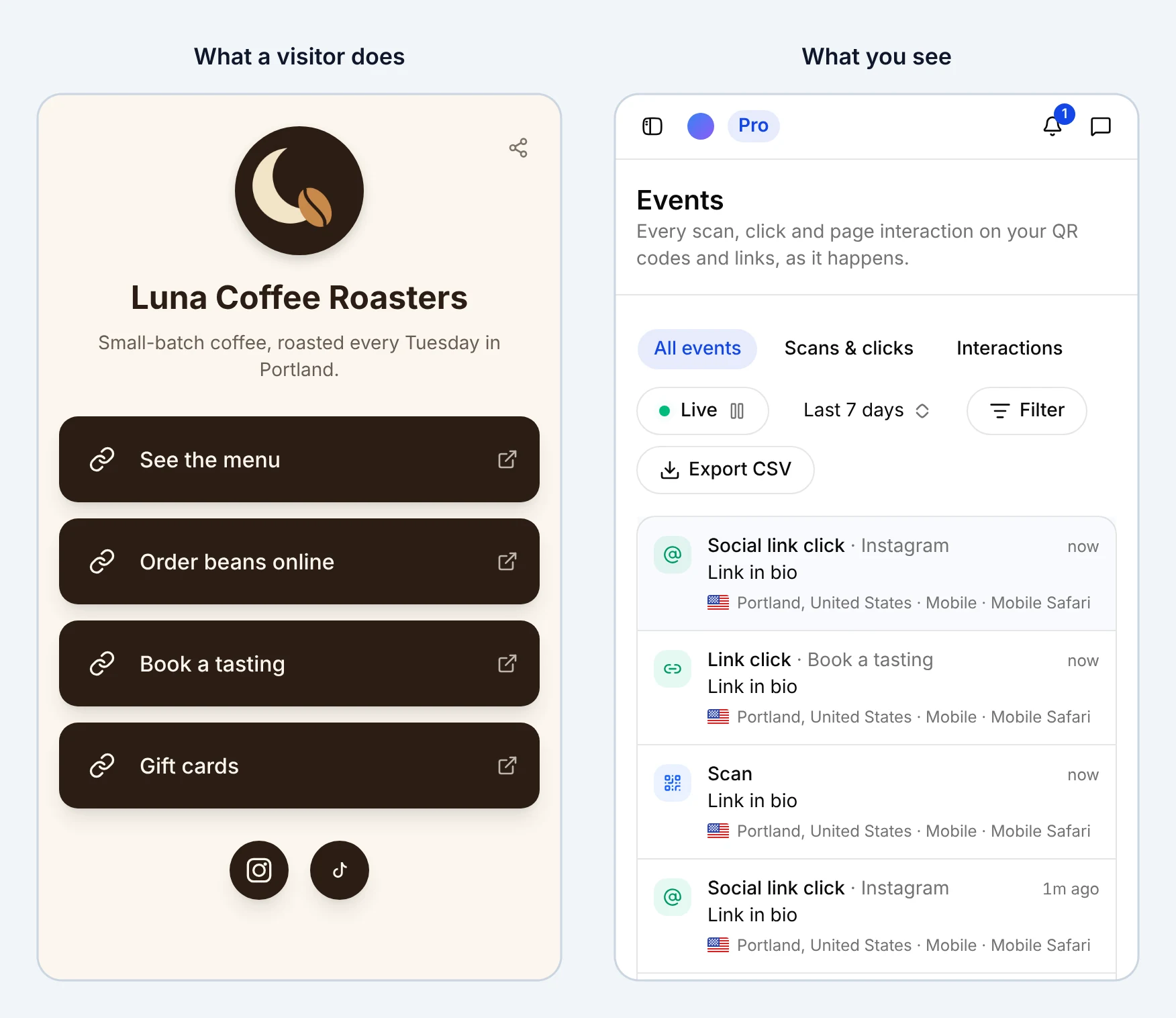
Watch QR code scans in real time
The stream is live. While Live shows a green dot, new events appear at the top on their own, usually within a couple of seconds, and stay highlighted for a moment so you can see what just arrived. You do not reload the page.
Press the pause button next to Live to hold the list still while you read it, and press it again to catch up. Live updates switch off by themselves when you are looking at a past date range, because nothing new can arrive in it.
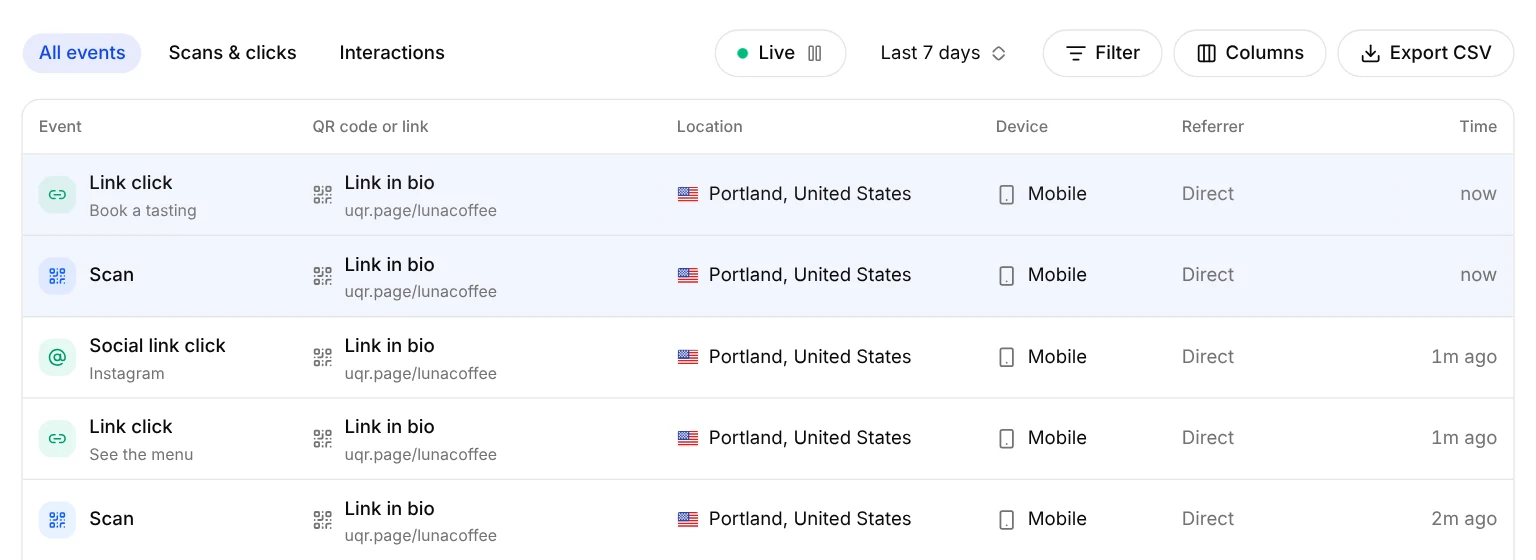
Tip Test a print run before it ships. Open Events, scan the proof with your phone, and watch the row arrive. You confirm in one step that the code scans, that it opens the right page, and that the page is reporting.
Filter the stream down to one question
An unfiltered stream is good for watching. A filtered one answers questions.
- Filter narrows by event, by type (QR codes or short links), by how the visitor arrived, and by device.
- Hover any value in the table, such as a country, a device or a QR code's name, and a small filter icon appears next to it. Click it to keep only the rows that match.
- The date range goes from the last 24 hours to the last 12 months, or month, quarter and year to date.
- Each active filter shows as a chip above the table. Remove one with its ×, or use Clear filters.
Filters are part of the page address. Bookmark a filtered view to come back to it, or send the address to a teammate in the same workspace and they open the same view.
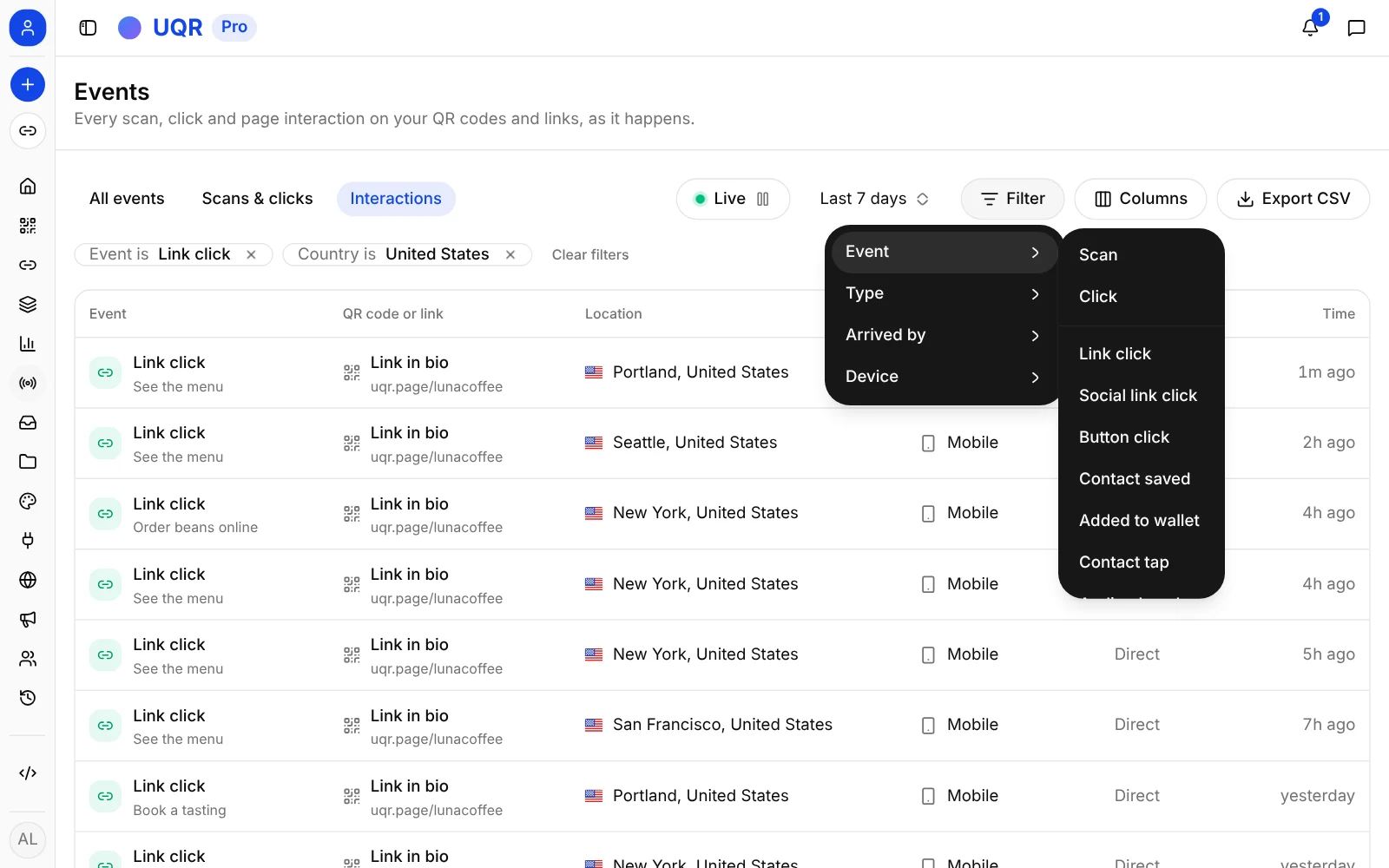
A few questions this answers in two clicks:
- Which link on my page do people in Germany tap? Filter to Link click, then hover a German row and filter by its country.
- Did anyone download the price list this week? Filter to Download, then hover the price list's QR code and filter by it.
- Is the new poster working? Hover the poster's QR code and filter by it. Every scan from that poster, and nothing else.
Choose your columns and export to CSV
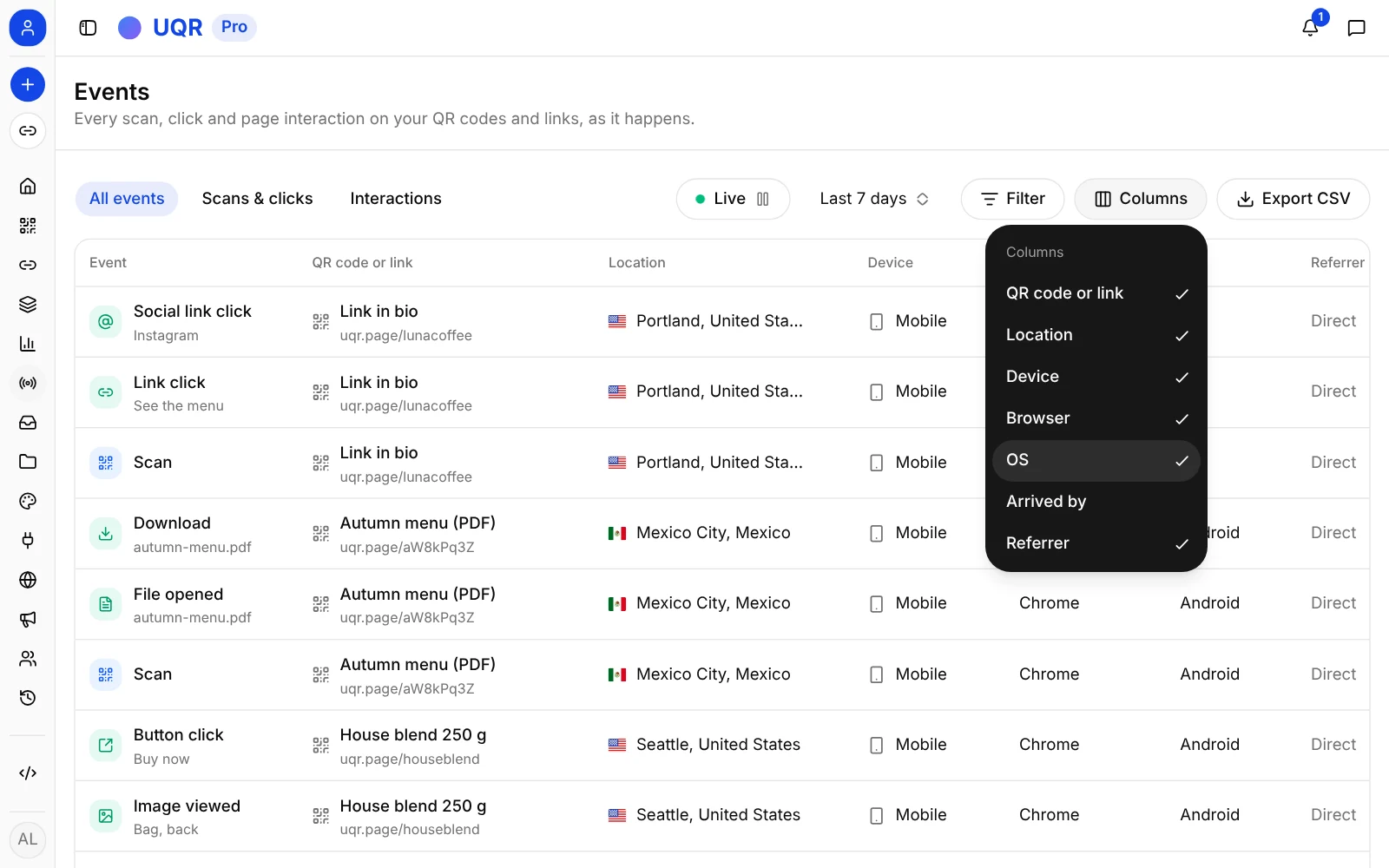
Columns adds or removes Browser, OS, Arrived by, Referrer and the rest. Your choice is remembered in that browser, so the table opens the way you left it.
Export CSV downloads the events you are looking at, with the same filters and date range, ready for a spreadsheet. Export is part of Pro and above.
The totals, on your analytics page
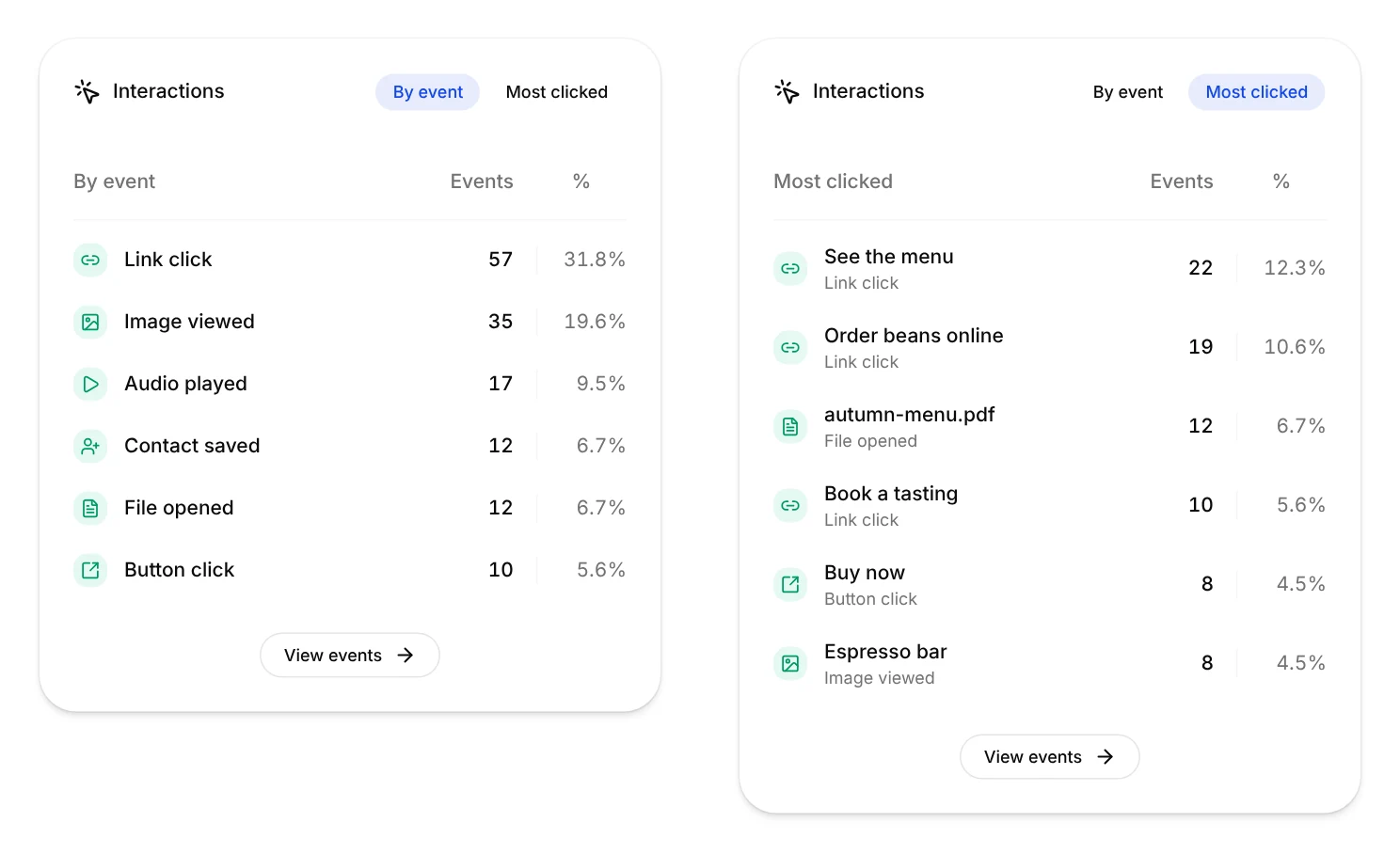
Events is the detail. The totals live where you already look. Your analytics page has a new Interactions card with two views:
- By event counts each kind of interaction over the period.
- Most clicked ranks the individual links, files and buttons. This is the view that tells you to move Order beans online above Gift cards.
View events on the analytics page opens the stream with the same dates and filters already applied, so you go from a total to the rows behind it in one click. The card also appears on the stats page of any QR code that has a hosted page.
Read events from your code or your AI assistant
Everything on the Events page is also available outside it, on Pro and above.
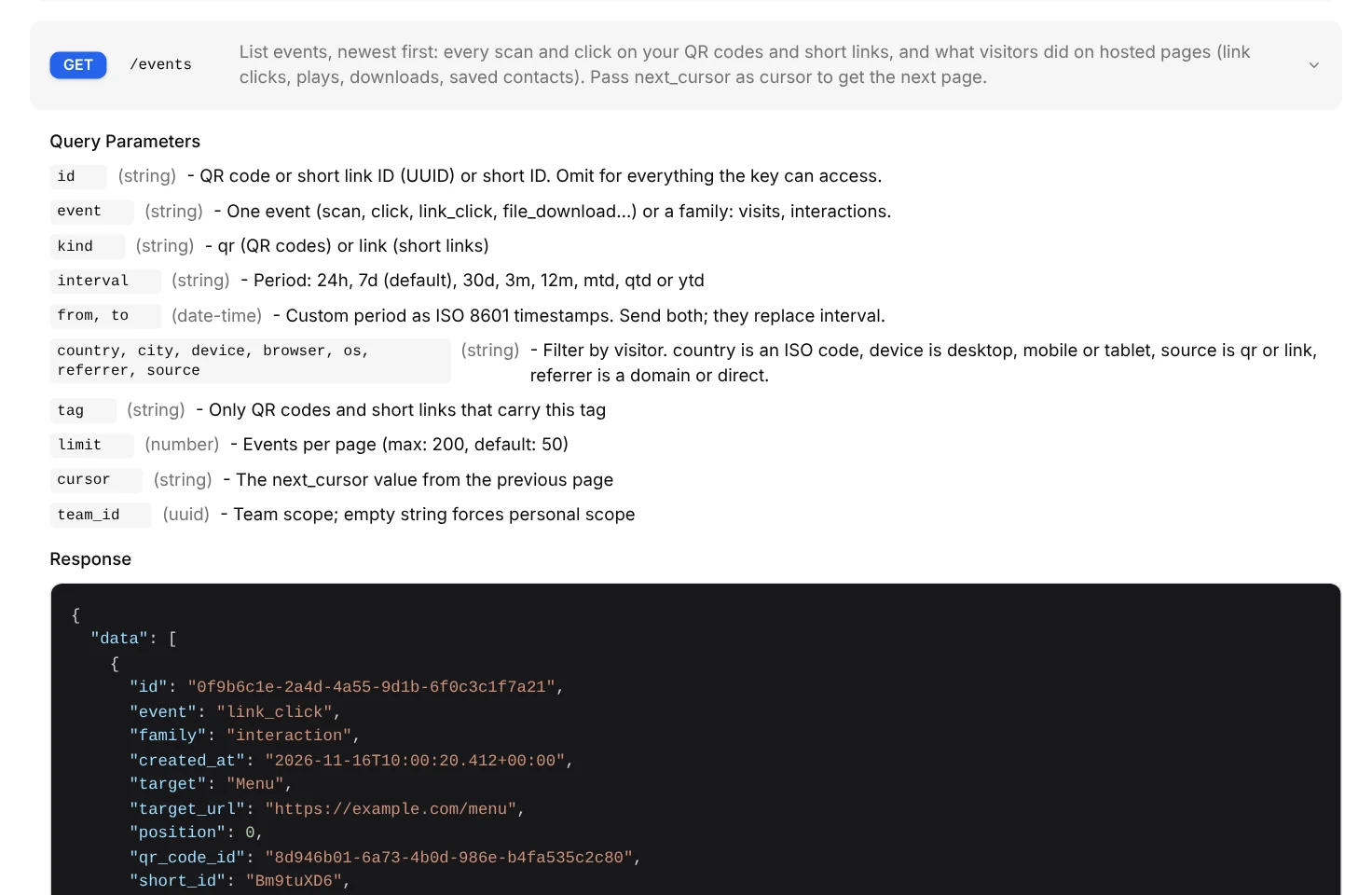
From code. Two read-only endpoints join the REST API: one lists events, one counts them.
curl "https://uqr.ai/api/v1/events?event=link_click&interval=30d&limit=5" \
  -H "x-api-key: YOUR_API_KEY"

curl "https://uqr.ai/api/v1/events/summary?interval=30d" \
  -H "x-api-key: YOUR_API_KEY"
They take the same filters as the page. Add team_id to read one team's events, or leave it empty for your personal workspace only; every event says which workspace it came from. A misspelled filter is an error that names the field, so a typo never quietly returns everything. The API docs list every parameter and the response format, and the automation guide shows how to send the results on to other tools.
From an assistant. The hosted MCP server has two new read-only tools, events and events_summary. Connect Claude, Cursor or ChatGPT and ask in plain words: which link on my bio page got the most clicks this month? It can look at one workspace at a time, including a team you belong to. The assistant can read. It cannot change anything unless you also grant it write access.
What is recorded, and what is not
An interaction is a short record: what happened, on which page, and roughly where and on what kind of device. Scans and clicks are recorded the way they always have been; this is what the new part adds.
Stored with each interaction: the event, the label of the link, file or button, whether the visitor scanned or clicked to get there, city and country, device type, browser, operating system, the referring site and the browser's language.
Not stored with it: the visitor's IP address, the browser's full user-agent string, or anything they typed. A Form submitted event says a form was sent. The answers go to Contacts, where they belong.
Three more things worth knowing:
- Events do not identify people. Visitors are counted with an anonymous identifier that changes every day, so a week of events cannot be stitched into one person's history. If you need to know who someone is, let them tell you with a form.
- The labels are yours. The visitor's browser only reports which button was used. UQR looks up that button's label and destination from your page, so nobody can write their own text into your stream.
- Crawlers are left out. Link previews and search bots open pages too. They are not an audience, and they are not listed. This is why Events can show slightly fewer scans than the analytics totals.
Note Interactions are counted from the day Events launched, in November 2026. If you pick an earlier period you will see its scans and clicks, which UQR has always recorded, and no interactions. That is "not recorded yet", not "nobody clicked".
Events on each plan
Events is on every plan, including Free.
| Free | Lite | Pro | Business | |
|---|---|---|---|---|
| Events page, live updates, filters, columns | Included | Included | Included | Included |
| History shown | Last 30 days | Full | Full | Full |
| CSV export | Not included | Not included | Included | Included |
| REST API and MCP | Not included | Not included | Included | Included |
On Free, the page shows the last 30 days. Older events are not deleted. They come back into view when you upgrade. Compare the plans on the pricing page.
Four ways to use it this week
- Reorder a link page by what gets tapped. Open Most clicked after a week and put the winner first. The List of Links builder lets you drag links into a new order without changing the QR code you printed.
- Find out whether the menu gets read. A restaurant menu QR code tells you how many tables scanned. File opened and Download tell you how many went on to open the menu, and which room they were sitting in if each room has its own code.
- Know which contacts were saved. A vCard scan means someone looked. Contact saved means you are in their phone. Pair it with scan notifications and you can follow up the same afternoon.
- Measure the code on the packaging. For a product page, Button click on the buy button is the number that matters. Compare it with scans to see how many people who picked up the box went on to the shop.
Questions about QR code events
Do I need to install or switch on anything?
No. There is no tag to add and no setting to enable. Your QR codes and hosted pages report on their own, including the ones you published before Events existed.
How quickly does an event show up?
Usually within a couple of seconds, without reloading. If your network blocks the live connection, the page checks for new events every few seconds instead, so it still keeps up.
Does it work for a QR code that points at my own website?
It records the scan. What the visitor does on your website is outside UQR, so no interactions are listed for that code. Because every UQR code is dynamic, you can point it at a hosted page instead, without reprinting, when you want to see what people tap.
Can my team see the same events?
Yes. Events follows the workspace you have selected, so a team workspace shows the team's QR codes and links to every member.
Why is there a scan in Analytics that I cannot find in Events?
Two cases. Crawler visits are counted in the analytics totals and left out of the stream. And a scan of a QR code you have since deleted still counts toward your totals, but has no row to show.
Key takeaways
- Events lists every scan, every short-link click and every interaction on your hosted pages in one live stream, newest first.
- Interactions name what was used: the link, the file, the button. That is what a scan count cannot tell you.
- Filter by event, QR code, country, device or date, then share or bookmark the filtered view.
- The analytics page gains an Interactions card with totals and a Most clicked ranking.
- Events is included on every plan. Free shows the last 30 days; CSV export, the API and MCP are part of Pro and above.
Ready to see what happens after the scan? Open Events, watch it work on the Events feature page, create a QR code if you do not have one yet, or explore all features.